
Below is a list of the major additions. For the detailed list of over 200 smaller improvements refer to the TotalCAE Support Forums at https://support.totalcae.com/a/forums
HPC GPU Job Submission for CAE Applications
The new GPU drop down for GPU-enabled solvers makes it simpler to submit GPU jobs with the following features:
-
GPU-aware scheduling, share multi-GPU nodes across multiple users.
-
GPU license-aware scheduling to schedule on GPU specific licenses.
-
Automatically apply the right GPU options for your application without remembering the required flags.

HPC GPU Reporting
We added GPU reporting for management to report on how utilized are your GPU machines, who is using them, what applications and versions are using them, and how long users are waiting on those GPUs relative to how long they run.

We also now feature real-time GPU analytics from NVIDIA GPU monitoring tools for seeing if your applications are behaving as you expect.

HPC Node List GPU Enhancements
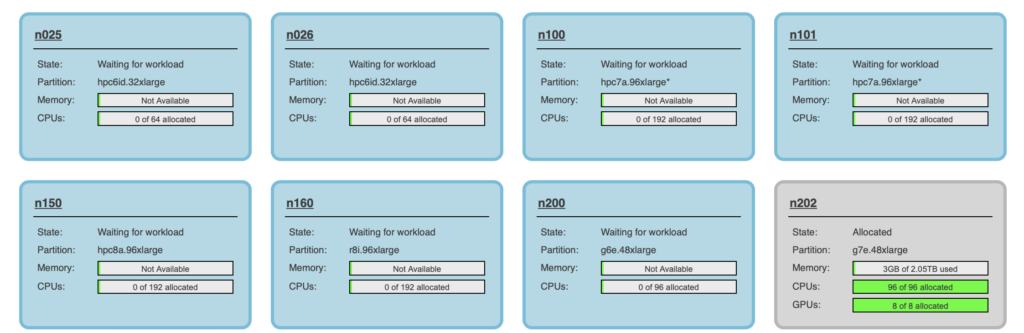
Nodes now will feature the number of GPUs in use on node(s) with GPUs, along with summary tables showing GPUs in use, pending in use, and any GPU quotas remaining.
Wait Time vs Run Time Reports
We added “Wait time vs Run Time” reports for management to see how long users, applications, and groups are waiting in the queue for resources relative to how long their jobs run. This is handy to see if more hardware, licenses, or policies should change so users are not waiting days in a queue for a job that runs for just a few minutes.

Auto Cancel Problem Jobs
We also added a user preference to “auto-cancel” any job that our TotalCAE watchdog detects is probably not running correctly. Watchdog checks rarely are false positives, and this will save you time of having to respond to watchdog email to cancel a job that is stuck, diverging, or is unlikely to complete.

Ansys Electronics Portal Page Now Aligns with Ansys Electronics GUI Options
The Ansys Electronics portal page now aligns with the same options the Ansys Electronics Desktop GUI shows, to make it simpler for users to submit that use the portal instead of RSM. Selecting or not selecting “auto” will now give you the identical options in the Ansys Electronics Desktop GUI. With Auto you have cores and nodes:

Without Auto, select nodes, tasks, and cores per task

For the longer detailed list of over 200 smaller improvements see and for security content updates in this release, refer to the TotalCAE Support Forums at https://support.totalcae.com/a/forums