
Part 5 of our series on improving CAE productivity with agentic AI tools
In the earlier parts of this series, we used Cursor, Google Antigravity, and Grok Bot to build an analysis framework, submit and monitor Abaqus jobs, and run a series of load cases. Now let’s talk about security and data access when using AI agents.
With any agent, the cloud AI model will receive some types of data, even if your models and generated output stay in your cluster or cloud. Understanding what goes where, and which settings control it, is the first step to keeping your CAE data from being stored or trained on.
How a Local AI Agent Reaches Your Cluster
Here is the high level workflow for a local agent like Cursor or Google Antigravity running on your laptop.
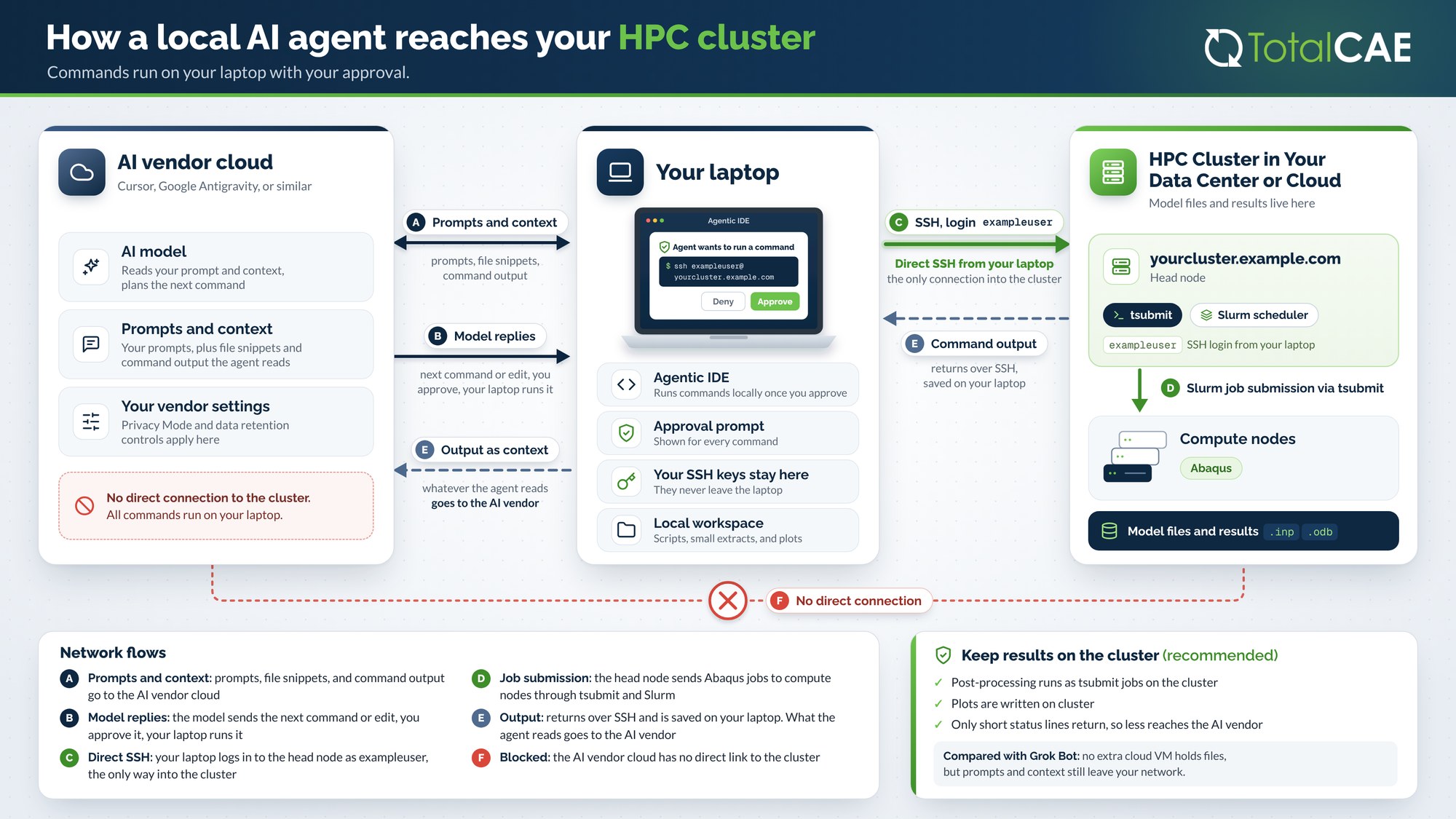
- The agent runs on your laptop. Your prompts and context, like file snippets and command output, go to the AI vendor’s cloud model.
- The model sends back the next command. You approve it, and your laptop runs it. An approval prompt is shown for every command.
- Your laptop connects straight to the cluster over SSH. That is the only way in, and your SSH keys stay on your laptop. They never leave it.
- The head node submits the jobs to the compute nodes through tsubmit and Slurm.
- Your model files and results stay on the cluster.
Note that the vendor cloud has no direct connection to your cluster. However, whatever output the agent reads does go back to the vendor as context.
Keep Post Processing on the Cluster
Because anything the agent reads becomes context for the AI vendor, it is a good idea to keep post processing on the cluster and only return short status lines. In practice that means running post processing as tsubmit jobs on the cluster, and writing plots on the cluster, so less of your data reaches the AI vendor.
The same idea applies whichever tool you use. With a local agent such as Cursor, no extra cloud VM holds your files, but prompts and context still leave your network. Both Cursor and Grok Bot send prompts and context to the AI vendor, and Grok Bot also keeps small extracts on its cloud VM.
Keeping Your Data from Being Stored or Trained On
AI defaults can sometimes grant permission to train on your data, depending on your settings, the models you choose, and the actions you take. Here are the items to be aware of, and what you can do to minimize or stop it.
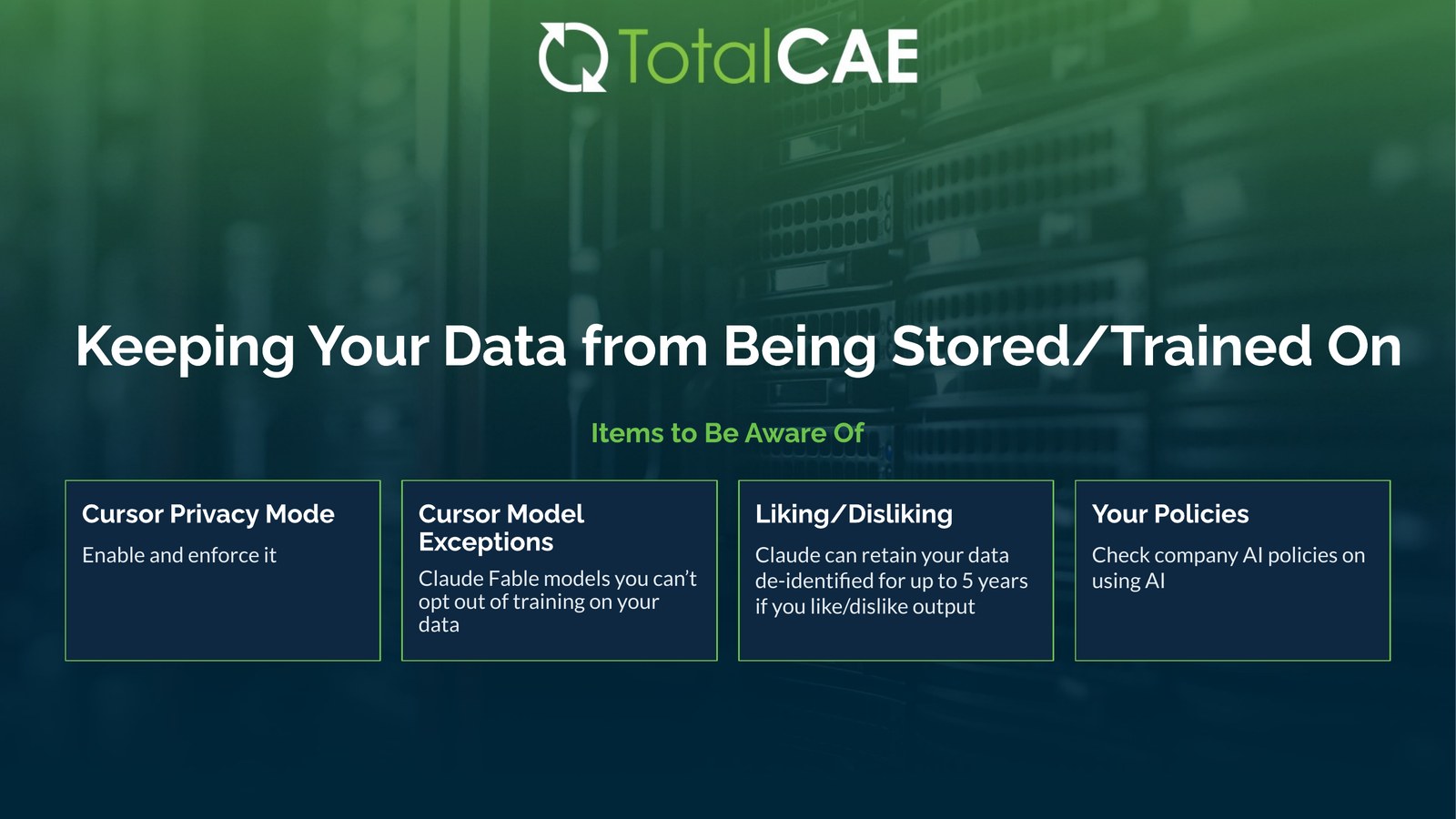
Cursor Privacy Mode: Enable and Enforce It
With Cursor, you can use Privacy Mode. With Privacy Mode on, Cursor does not train on your code, and it has zero data retention agreements with some model providers. Turn it on in Cursor Settings (Ctrl+Shift+J, or Cmd+Shift+J on Mac), under General, Privacy Mode. Teams get it on by default, and on Teams and Enterprise plans administrators can enforce it.
Cursor Model Exceptions
Some models, like the Claude Fable models, don’t let you opt out of training on your data. On Cursor Enterprise plans you can block those models, or you can disable Fable models in your own editor.
Liking and Disliking Output
With Anthropic, if you give a response a thumbs up or thumbs down, it can retain that chat and output for up to five years. It’s de-identified, but it may not be something you want for your CAE work. If that’s a concern, skip the feedback buttons.
Your Policies
Last, check with your IT department on your company’s AI policies. Many companies ban AI outside sanctioned tools, and have specific policies you’ll want to know before you use them, to stay out of trouble. As we noted in Part 2, modern frontier models are nearing parity, so the choice of tool often comes down to what IT has approved you to use.
A Quick Checklist
- Know what leaves your network: prompts, file snippets, and any command output the agent reads.
- Keep model files, results, and post processing on the cluster, and return only short status lines.
- Keep your SSH keys on your laptop, and keep command approvals on.
- Turn on Cursor Privacy Mode, and have admins enforce it on Teams and Enterprise plans.
- Block or disable models that don’t let you opt out of training.
- Think twice before liking or disliking output.
- Check your company’s AI policies before you start.
More in this series:
- Part 1: Does Using AI Really Make CAE Engineers More Productive
- Part 2: Using an Agentic AI Framework to Solve the CAE Productivity Paradox
- Part 3: How to Use Cursor to Submit an Abaqus Run or Restart and Plot ODB Outputs
- Part 4: Using Grok Bot to Set Up and Run a Series of Load Cases, and Email, Slack or Call You When Completed
Talk to TotalCAE
Want an IT partner that can manage your HPC cluster or cloud for use by engineering, to reduce time to solution and take advantage of next level technology? Contact us at info@totalcae.com.