
Part 4 of our series on improving CAE productivity with agentic AI tools
In Part 3, we used Cursor to submit a single Abaqus job, monitor it, and plot the ODB. Many common workflows go a step further and involve some lightweight scripting, like submitting a whole directory of load cases. You could write some simple batch commands to do this, but an AI agent can do it all for you. In this post we showcase Grok Bot running eight Abaqus load cases and summarizing the results.
Why Grok Bot for Load Cases?
Grok Bot can create many agents and run them for you 24/7. It has custom integrations, so it can Slack you, email you, or even call you when your load cases are done, with a summary of the results. And because it runs on its own cloud computer, it can keep working even when your laptop is closed.
Step 1: Ask for a Load Case Runner
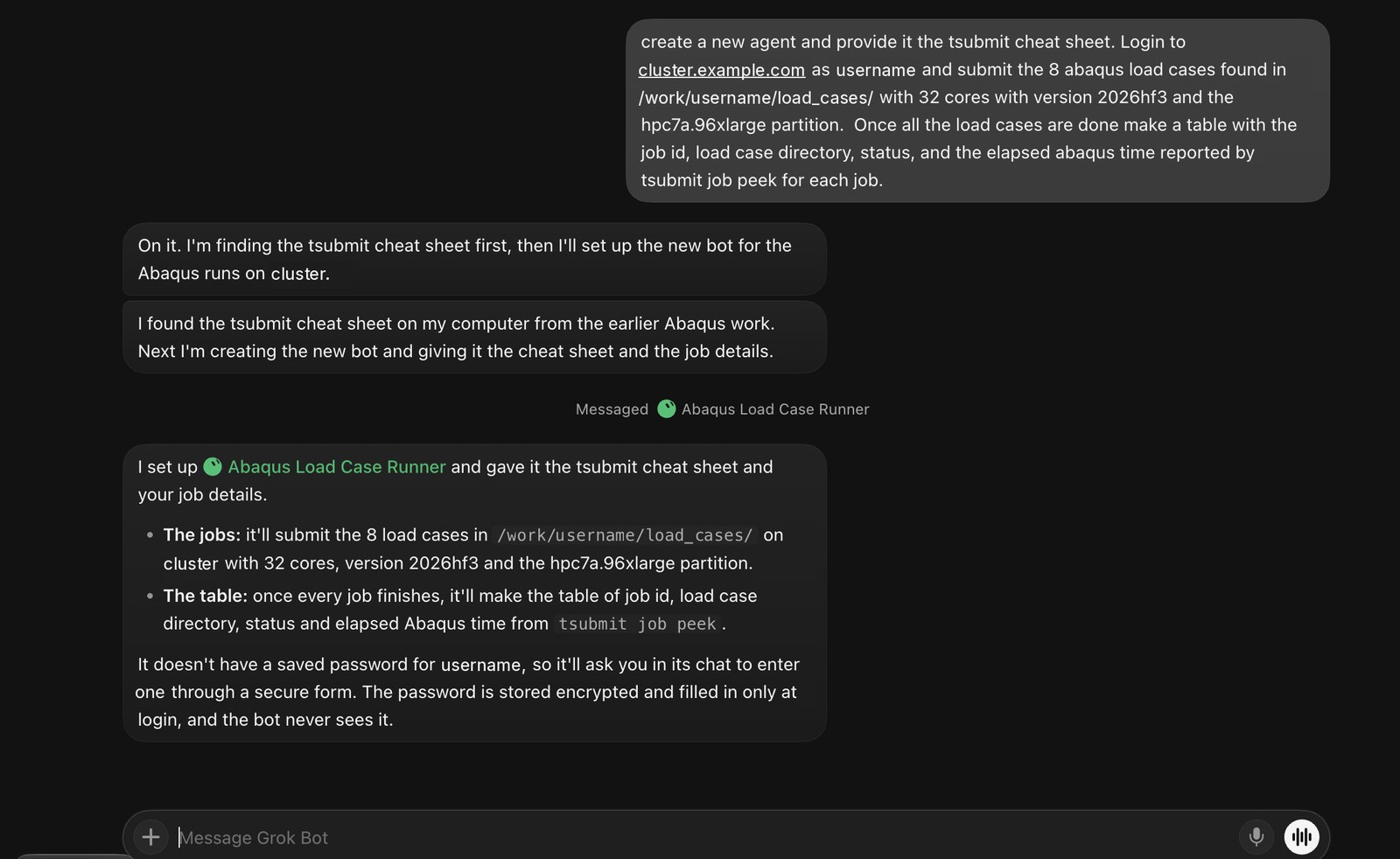
Here is the request we gave Grok Bot:
create a new agent and provide it the tsubmit cheat sheet. Login to cluster.example.com as username and submit the 8 abaqus load cases found in /work/username/load_cases/ with 32 cores with version 2026hf3 and the hpc7a.96xlarge hardware partition. Once all the load cases are done make a table with the job id, load case directory, status, and the elapsed abaqus time reported by tsubmit job peek for each job.
The main bot, called the chief of staff, listened and spun up a specific bot, the Abaqus Load Case Runner, to run Rodney’s load cases. It pulled the tsubmit documentation that another bot he had used earlier for Abaqus work already had, so the new bot could submit to the cluster. Then it went to work on his project.
Step 2: Jobs Submitted, With Approval Before Commands Run
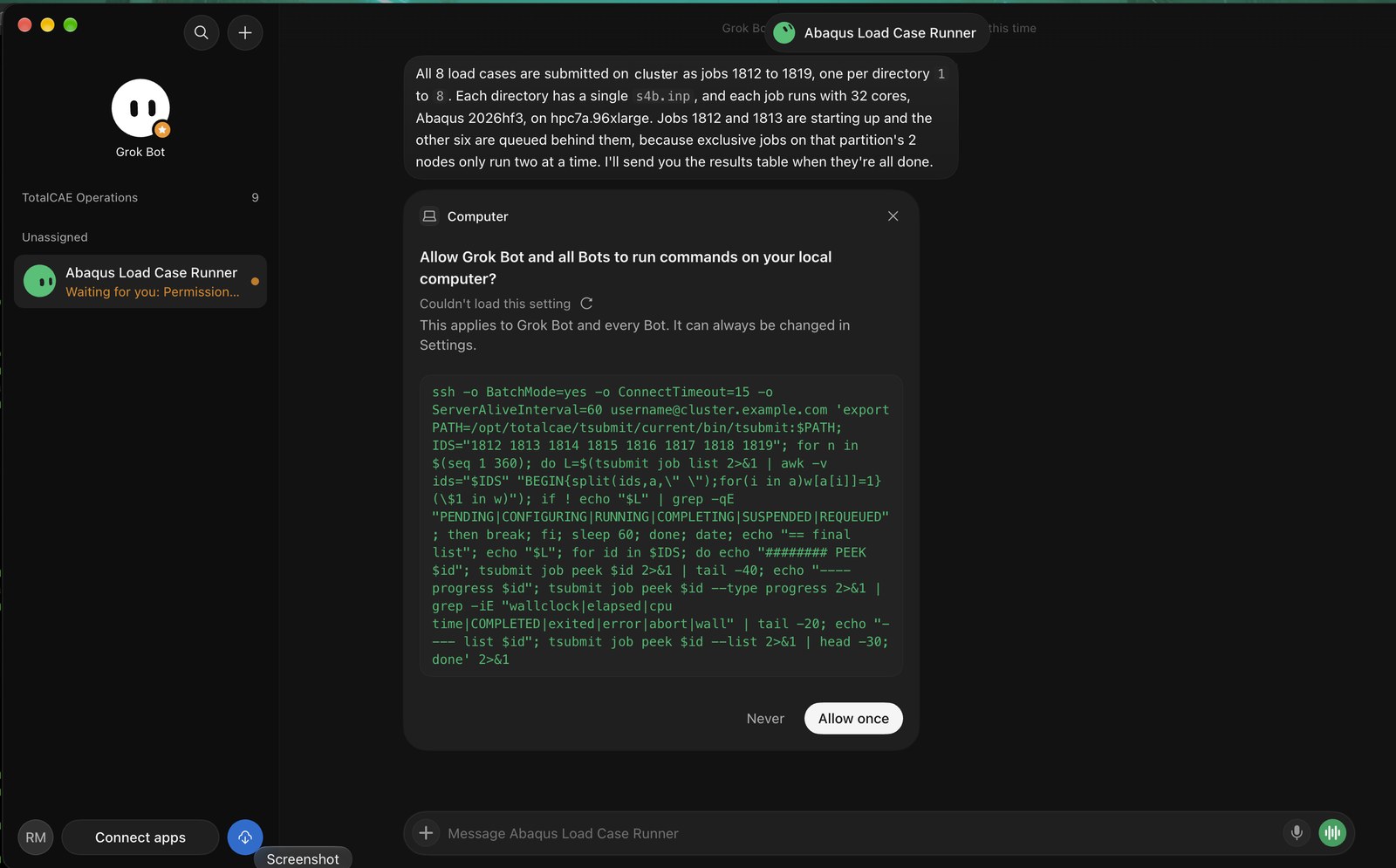
The runner submitted all eight load cases to the cluster, one job per directory, each with 32 cores on Abaqus 2026hf3 and the hpc7a.96xlarge partition. It also explained that two jobs were starting while the other six were queued behind them.
Notice that it asks for approval before it runs commands. Here it wants to run an SSH command that watches the jobs with tsubmit job list and gathers results with tsubmit job peek, and you can choose to allow it once or never. You stay in control of what actually executes.
Step 3: All Eight Load Cases Summarized
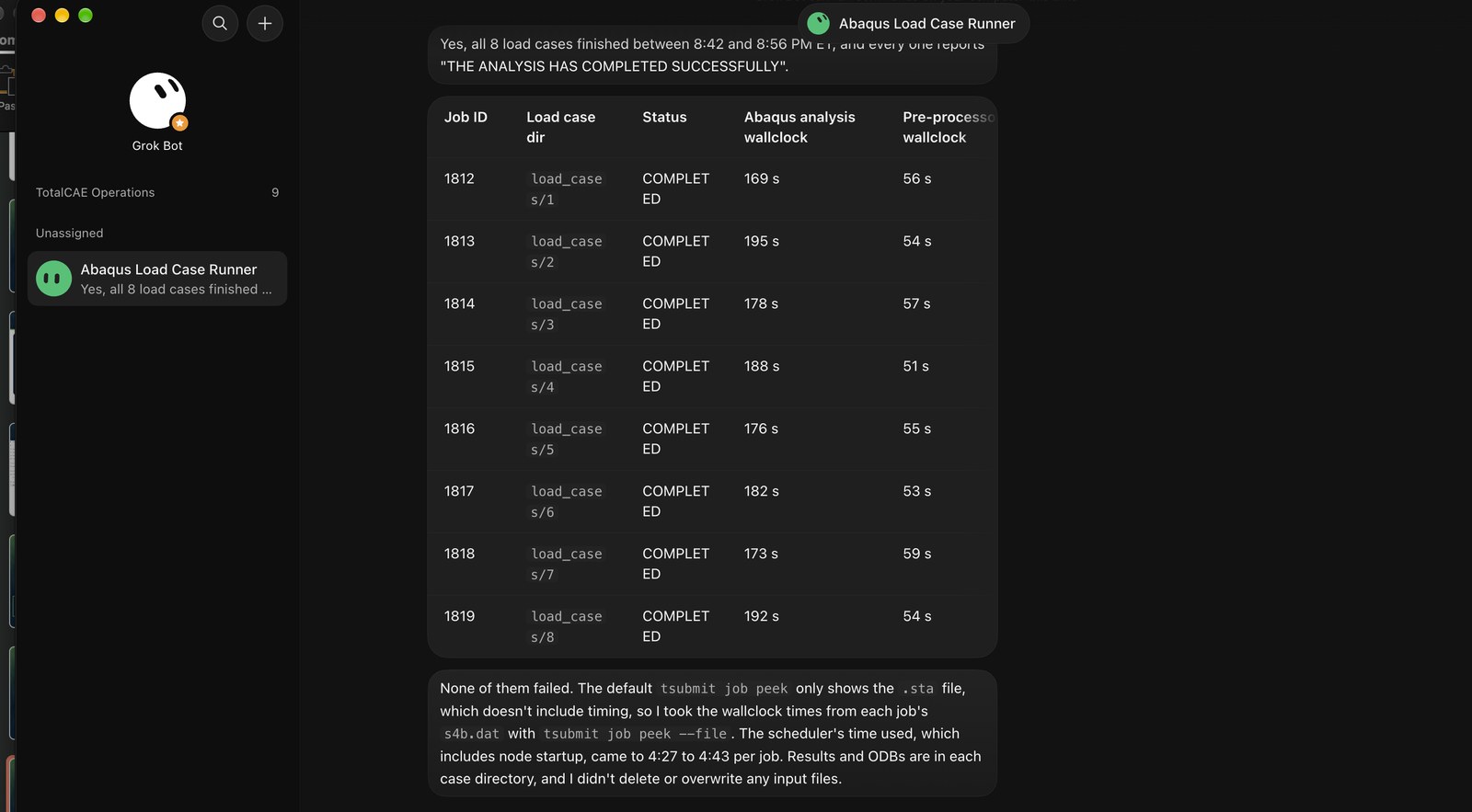
Finally, the runner summarized all eight load cases with the status and timings we had asked for.
The bot also explained its method. The default tsubmit job peek only shows the .sta file, which doesn’t include timing, so it took the wallclock times from each job’s .dat file using tsubmit job peek --file. It noted that the scheduler’s time used, which includes node startup, came to 4:27 to 4:43 per job, that results and ODBs are in each case directory, and that it didn’t delete or overwrite any input files.
From here, the same summary can be sent to you by Slack, email, or even a phone call when the load cases are done.
You Can Do This with Cursor Too
Cursor can do this kind of job as well. As we showed in Part 3, Cursor can use tsubmit to submit, manage, and monitor HPC jobs and pull back results, all from a plain English prompt. The difference is where the agent runs and how long it keeps working. Grok Bot is a bit different from Cursor, and which one to use depends on your use case.
Grok Bot vs Cursor
Grok Bot is persistent and always on, with its own cloud computer that is managed by Cursor. Routines run while you’re away, it can send email, post to Slack, and make phone calls, and several bots can work together. Cursor runs as an IDE on your laptop, and the agent works while your session is open. If you don’t need the advantages listed here, just using Cursor is fine.
| Grok Bot | Cursor |
|---|---|
| Persistent, always on, with its own cloud computer | IDE on your laptop |
| Routines and schedules run while you’re away | The agent works while your session is open |
| Plugins and connectors send email, post to Slack, and make phone calls | Extensible by calling other services |
| Watches jobs in the background and reports back | Commands run locally with your approval |
| Several bots work together |
Data note: Both send prompts and context to the AI vendor. Grok Bot also keeps small extracts on its cloud VM. We cover how data flows, and how to keep it from being trained on, in Part 5.
More in this series:
- Part 1: Does Using AI Really Make CAE Engineers More Productive
- Part 2: Using an Agentic AI Framework to Solve the CAE Productivity Paradox
- Part 3: How to Use Cursor to Submit an Abaqus Run or Restart and Plot ODB Outputs
- Part 5: How to Keep Agentic AI Tools from Training on Your CAE Data
Talk to TotalCAE
Want to automate your load case runs on your HPC cluster or cloud? Contact us at info@totalcae.com.