
wCurPart 3 of our series on improving CAE productivity with agentic AI tools
In Part 2, we had Cursor build a full agentic framework from a research paper and use it to solve a cantilever beam in Abaqus. But agents aren’t just for big frameworks. You can also use them for the smaller, day to day tasks that make life easier. In this post we look at one of the most common: submitting an Abaqus job or restart to your HPC cluster or cloud, monitoring it, and plotting the ODB results when it finishes, all in plain English.
Agents Are Great at Small Tasks
A lot of CAE time goes into routine steps: writing a submission command, checking on a job, waiting for it to finish, then opening the ODB to pull out the results you care about. None of it is hard, but it adds up.
With an agentic tool like Cursor, you can describe what you want in plain English and let the agent handle the steps. Cursor can use tools to submit, manage, and monitor HPC jobs and pull back results. There’s no code to write, no files to edit, and no tools to juggle.
Give Cursor the Right Tools and Docs
The key is giving the agent a reliable way to talk to your cluster. With TotalCAE, that is tsubmit, a standardized command line tool for running jobs, checking status, viewing logs, and pulling results from your HPC cluster or cloud. Using a standard tool like this is more reliable than having the agent improvise ad hoc shell commands for job submission, management, monitoring, file staging and download.
As we covered in Part 2, we upload the TotalCAE end user documentation to Cursor. That documentation is what lets the agent understand how to submit, manage, and monitor jobs on your HPC cluster or cloud, and it helps avoid the first pitfall from Part 1: invented commands and keywords.
The Prompt: Plain English
Here is the prompt we gave Cursor to submit an Abaqus restart job:
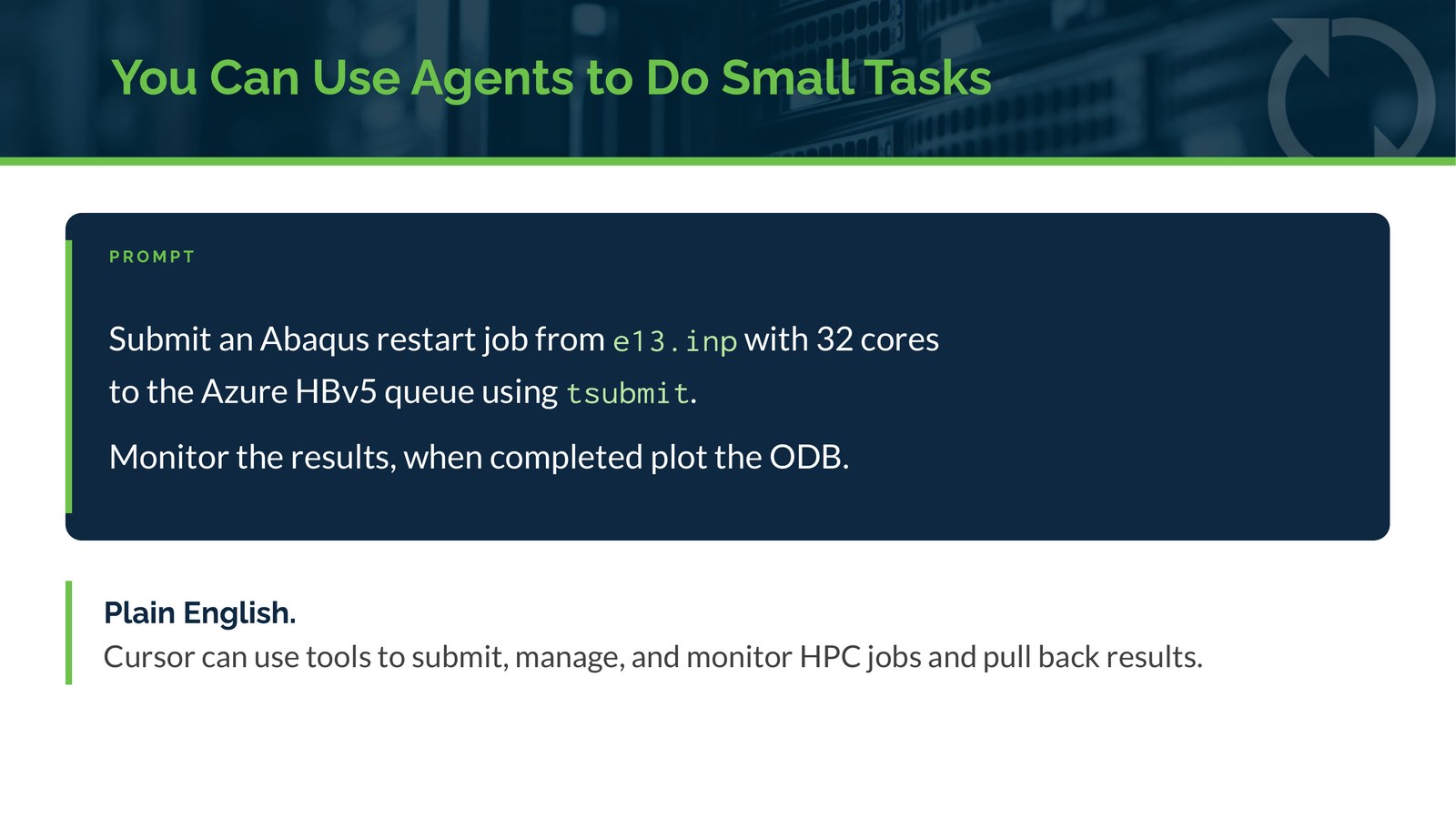
Submit an Abaqus restart job from e13.inp with 32 cores to the Azure HBv5 queue using tsubmit. Monitor the results, when completed plot the ODB.
That’s it. We asked Cursor to submit the restart with 32 cores to the Azure queue using tsubmit, monitor it, and plot the ODB when it was done.
What Happened: Submitted, Monitored, and Plotted
The job was submitted, monitored, and the ODB results were plotted automatically. You get quick reporting without writing any code.
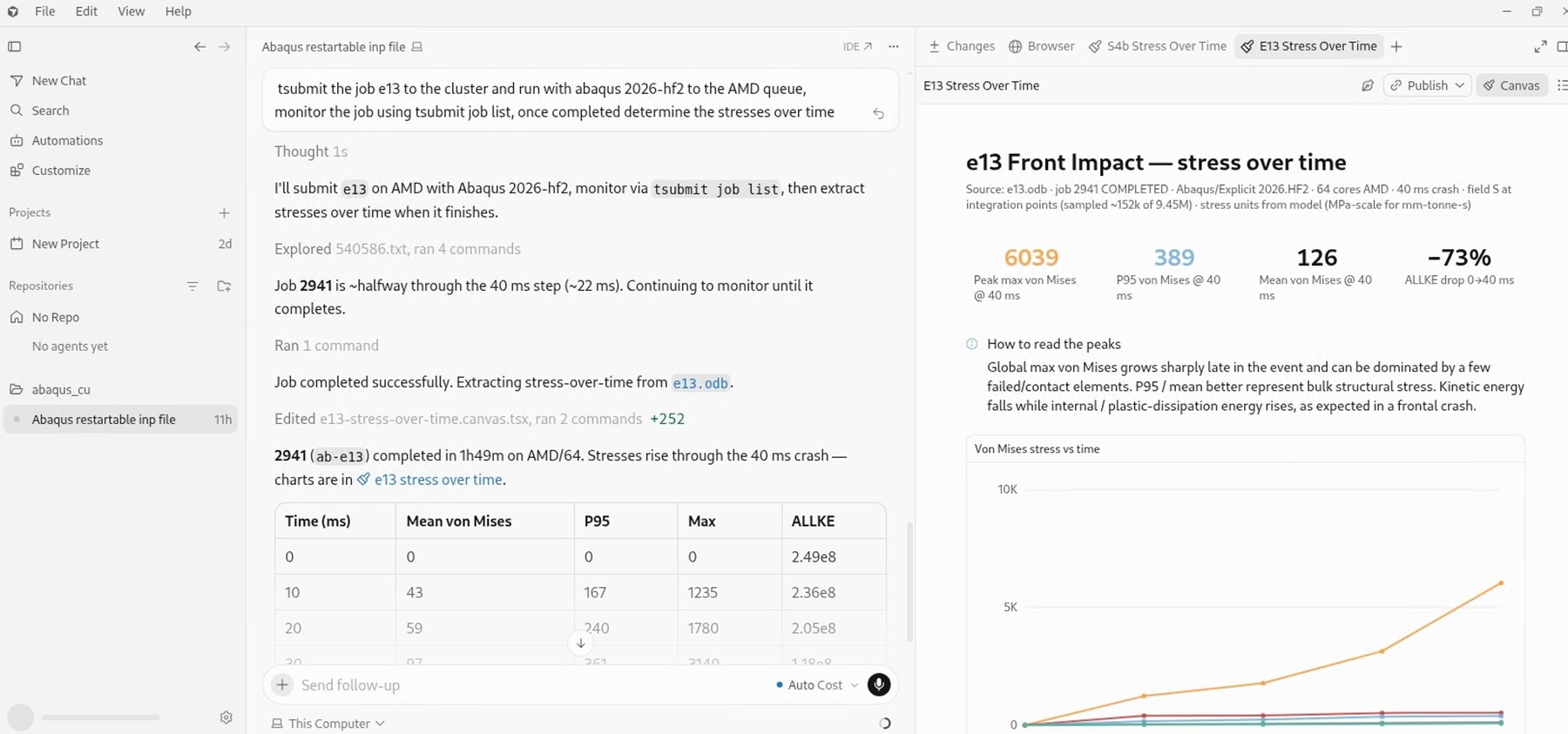
The screenshot below shows Cursor working through this kind of request on the e13 model. It submits the job with tsubmit, checks on it with tsubmit job list while it runs, reports when the job has completed successfully, and then extracts stress over time from e13.odb. The results come back as a table in the chat and as a chart of von Mises stress over time, with a short guide on how to read the peaks.
Tips for Doing This Safely and Well
A few practices from the webinar make this kind of quick automation work better:
- Keep approvals on. Avoid “run everything” or YOLO mode, and watch out for dangerous or wrong commands. Review each command before it runs, especially when you are first getting started.
- Be specific about what you want. Name the input file, the core count, the queue, and the tool to use, as in the prompt above. Clear directions make it much easier for the agent to get it right the first time.
- Tell it what to report. Asking it to “plot the ODB” or “determine the stresses over time” gives the agent a clear finish line.
- Keep post processing on the cluster. Whatever output the agent reads goes back to the AI vendor as context. So it is a good idea to keep post processing on the cluster and only return short status lines. We cover this in more detail in Part 5.
Why This Matters
Small wins like this add up. Instead of switching between a terminal, a job monitor, and a post processor, you describe the job once and let the agent handle submission, monitoring and plotting. You stay in control through approvals, and you get a quick report at the end.
If you want to go a step further and run a whole series of load cases, then get an email, a Slack message, or even a phone call when they are done, see Part 4, where we use Grok Bot to do exactly that.
More in this series:
- Part 1: Does Using AI Really Make CAE Engineers More Productive
- Part 2: Using an Agentic AI Framework to Solve the CAE Productivity Paradox
- Part 4: Using Grok Bot to Set Up and Run a Series of Load Cases, and Email, Slack or Call You When Completed
- Part 5: How to Keep Agentic AI Tools from Training on Your CAE Data
Talk to TotalCAE
Want an IT partner that can manage your HPC cluster or cloud for use by engineering, to reduce time to solution and take advantage of next level technology? Contact us at info@totalcae.com.