
TotalCAE Platform v2026.6 has been released!

TotalCAE HPC Job Sleuth
The main focus of this release is faster debugging of failed or underperforming jobs with TotalCAE HPC Job Sleuth and TotalCAE HPC Node Sleuth.
TotalCAE Watchdog already monitors job outputs and flags application issues — now with one click you can also see any problems on the HPC nodes where your job ran. We deliver one-hour responses to support tickets, but the fastest resolution is when you don’t need to open a ticket at all. That’s why we keep innovating to help engineers resolve issues quickly and get back to work.
A quick example of how to use TotalCAE HPC Job Sleuth:
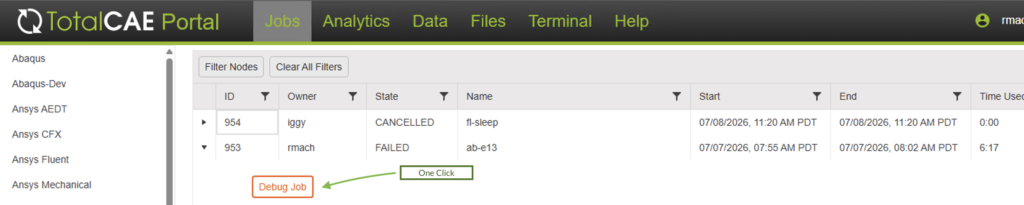
Step 1. If a Job Failed that normally works, click “Debug Job” and the Node Sleuth Analysis Appears.
Step 2. See from TotalCAE Node Sleuth analysis that InfiniBand hardware issue during the job run killed the job
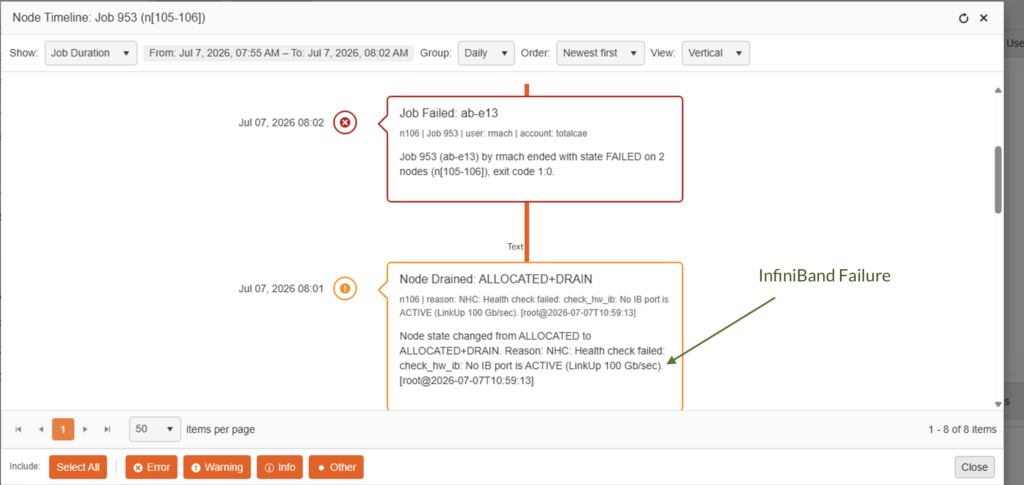
Now users can quickly check for any HPC anomalies that occurred during their job runs and may have impacted performance. This includes hardware issues, InfiniBand or RDMA problems, thermal throttling, high load, out-of-memory conditions, software configuration changes, and more. The same tools our team uses to deliver one-hour support responses are now at your fingertips for even faster analysis.
TotalCAE HPC Node Sleuth
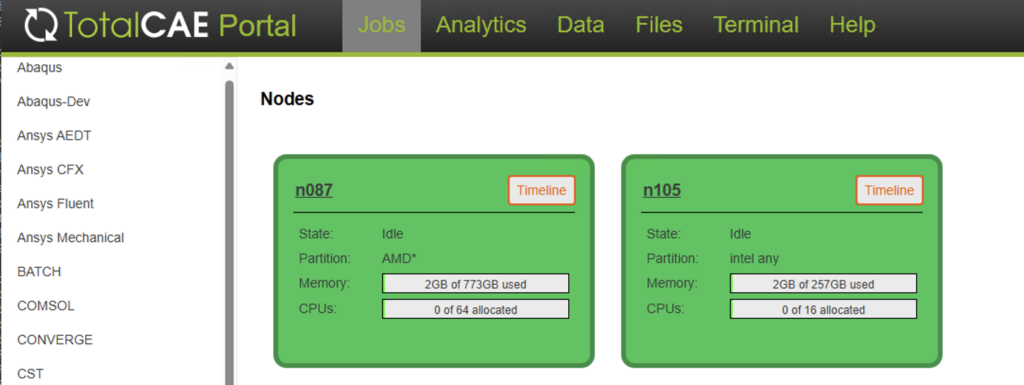
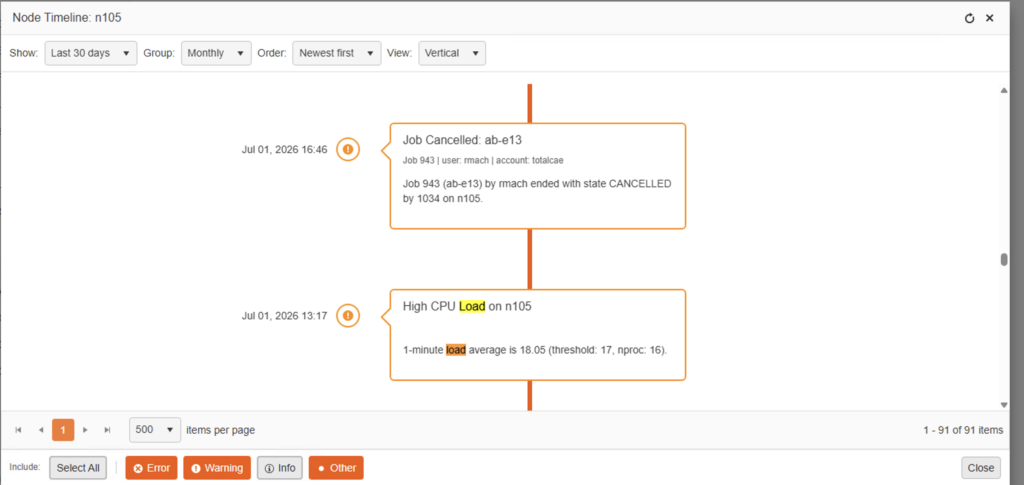
Nodes now have a “Timeline” button which shows other jobs that may be having issues, recent machine changes, and any other HPC-related events. Previously only TotalCAE IT support can view issues, now this view is available to all users.
Step 1. Click on the Node List and click “Timeline”
You can see that in this compute nodes history, it had a job running with too high a load, and then it was cancelled.
Some other notable updates in this release:
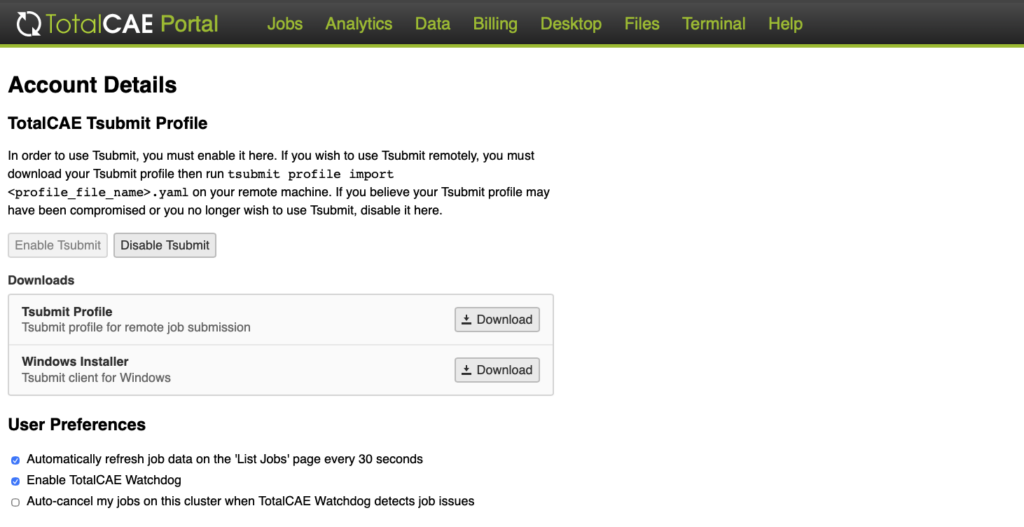
Download Windows Tsubmit Client from the Account page
We have made it easier for users to download the Windows tsubmit installer through the portal Account Details page.
Other Changes
There are also many quality-of-life improvements. Here’s a subset of the most notable updates:
- Added “tsubmit job list” option to the tsubmit command, matching the TotalCAE Portal Job List page with customizable column display.
- Added license-aware scheduling support for companies with multiple license servers owned by different groups using the same license features.
- Added support for license-aware scheduling of applications that can use different feature sets (e.g., the job can start if Feature A or Feature B is available).
- Added base support and new analytics reporting based on Slurm accounts, in addition to existing user, group, and solver reports.
- Added “pre-production” plugins, allowing clients to test new features side-by-side with production ahead of official release.
- Updated Ansys HPC Pack calculations for license-aware scheduling with GPUs.
- Enforced Fluent GPU best practices for CPU and GPU selection at submission time, making it easier to submit Ansys Fluent GPU jobs.
- Added Azure Spot Scale Set support for Azure clients.
- Updated Google GCP H4D support for application plugins.
- Added direct Excel export for the Cloud Estimator tool, which calculates on-prem workloads equivalent on-demand cloud costs.
For the longer detailed list of over 200 smaller improvements and for security content updates in this release, refer to the TotalCAE Support Forums at https://support.totalcae.com/a/forums